You have your logo as a small 300-pixel JPG, blurry around the edges. The printer asks for an SVG, the sign maker for a vector file. This is a very common situation, and for a long time the only serious answer was to redraw the logo by hand. It's my trade and I gladly do it, but not every case justifies it. That's the kind of situation I designed Contour for: a free tool that turns an image into a vector file, right in your browser.
Contour in brief
- What it does: it converts an image (PNG, JPG, GIF, BMP or WebP) into SVG, PDF or DXF.
- Where: in your browser. Nothing is sent to a server: all the computing happens on your computer.
- How much: it's free, and still a beta version: the result may need touching up.
- Who it's for: business founders, associations, designers in a hurry, laser-cutting and vinyl enthusiasts.
You'll find it at mow-logo.com/contour. The interface is in French for now.
How it works, in four steps
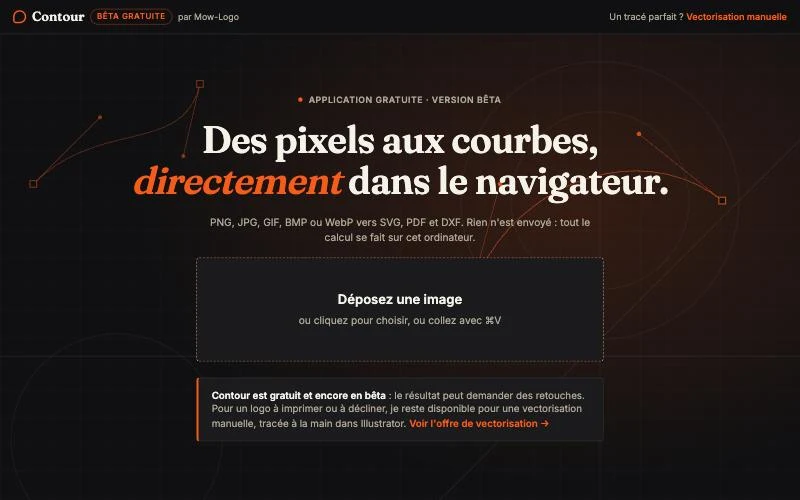
- Drop the image. Drag it onto the page, click to choose it, or paste it with ⌘V (Ctrl+V on Windows). The maximum size is 30 MB.
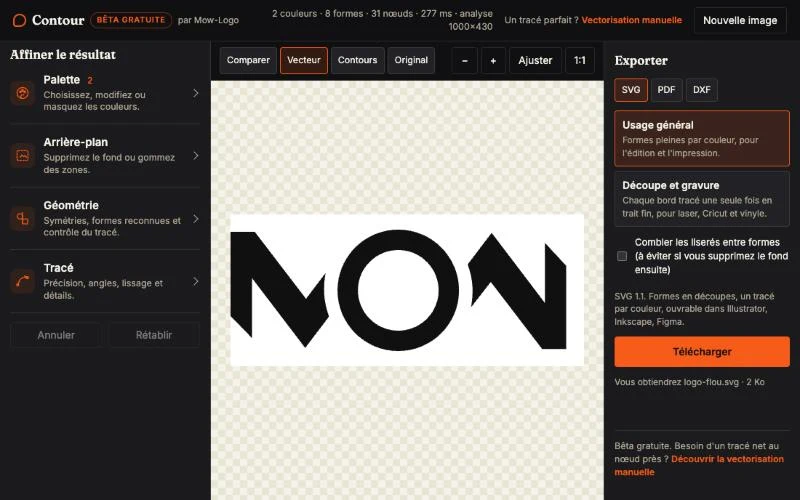
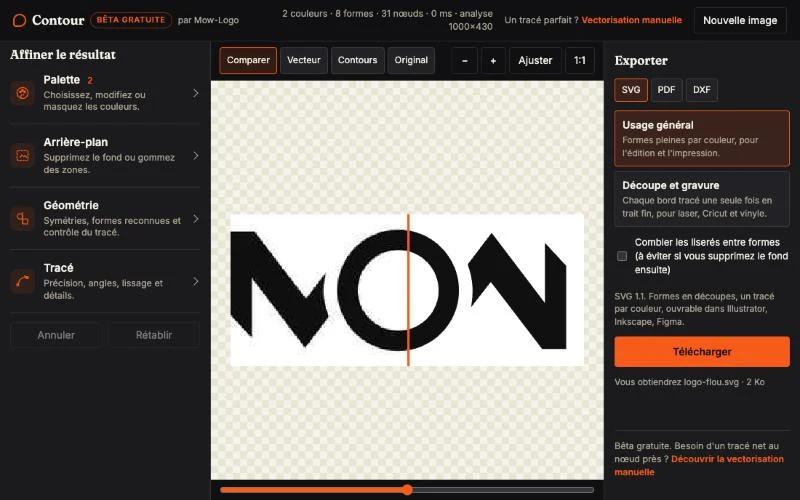
- Let the analysis run. In a fraction of a second, Contour spots the colours, shapes and trace points. A banner at the top sums up the result: number of colours, shapes and nodes, and computing time.
- Fine-tune if needed. Four panels: Palette (choose, edit or hide colours), Background (remove the background or erase areas), Geometry (symmetries, recognised shapes) and Trace (precision, corner angle, smoothing, details kept).
- Export. As SVG, PDF or DXF, in two modes: General use (solid shapes per colour, for editing and printing) and Cut and engrave (each edge traced only once, as a thin line, for laser cutting, Cricut machines and vinyl).
A Compare button lets you drag a slider between the original and the vector, to check the trace before downloading.
A real example
To test it without ambiguity, I took my own logo and deliberately damaged it: a JPG only 300 pixels wide, heavily compressed (4 KB). Contour turned it into a 2 KB SVG: 2 colours, 8 shapes, 31 nodes, computed in under half a second.
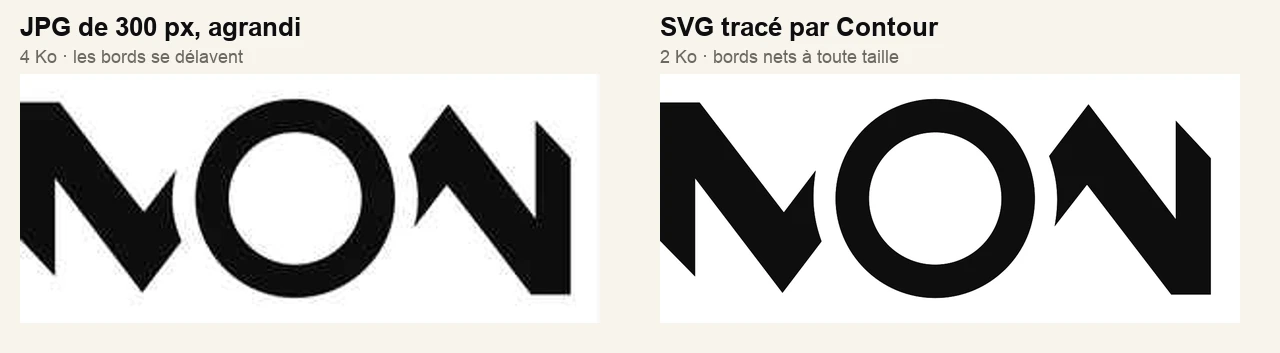
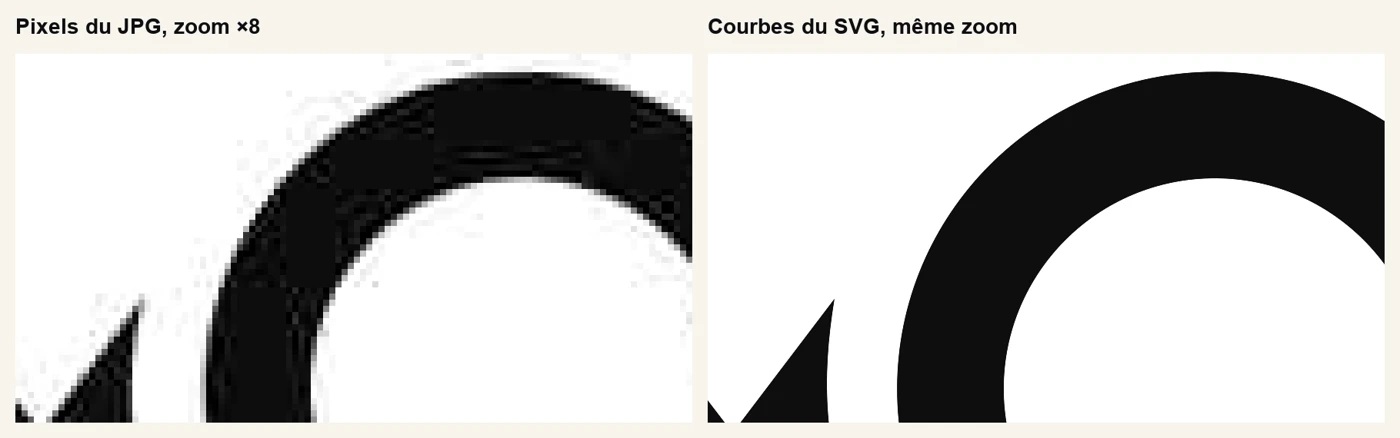
The circle becomes a circle again, the diagonals stay straight and the corners stay sharp. That's exactly what you expect from a vector trace.
What sets it apart
Most automatic tools fit curves onto every contour without trying to understand what they see. Contour instead tries to recognise the geometry: a straight line stays straight, a circle is drawn as a circle, a regular polygon isn't rounded by mistake, and symmetries can be detected and enforced. Small logos and transparent-background PNGs are handled separately, because that's where automatic tracing is most fragile.
I don't judge the result by eye: I measure it, on a set of reference logos, by comparing the distance between the original outline and the trace, the straightness of lines and the preservation of angles.
Privacy: your files stay with you
Many online tools send your image to a server. Contour does all its computing in your browser: the image never leaves your computer. That helps when the logo is confidential, for example before a launch.
Its limits (it's a beta)
- It traces flat colours. It's made for logos, pictograms and silhouettes, not photos.
- The result may need touching up. It sometimes produces more trace points than a hand-drawn design.
- Source quality matters. A tiny or badly damaged image gives a less faithful trace than a clean one.
For a logo meant for print, signage or a full brand guide, manual vectorisation remains the cleanest solution: the trace is drawn node by node, with points placed where they belong. Contour is the right choice for a quick fix, for trying things out, or for getting a clean base.
Frequently asked questions about Contour
Is Contour really free?
Yes. The application is free and in beta. There is no account to create to use it.
Are my images sent to a server?
No. The computing happens in your browser: the image never leaves your computer.
Which formats does Contour accept and produce?
Input: PNG, JPG, GIF, BMP and WebP, up to 30 MB. Output: SVG, PDF and DXF.
Can I use the SVG commercially?
Exported files carry the note “free to use”. You remain responsible for the rights to the original logo, however: Contour gives you no rights over a design that doesn't belong to you.
Does Contour replace a designer?
Not for an important logo. It's ideal for a quick fix, for trying things out or for getting a clean base. For a trace that is sharp to the node, manual vectorisation is still preferable.
My take as a designer
I designed Contour the way I work: by measuring rather than guessing. Every change to the engine is checked on reference logos, so that straight lines stay straight and circles stay circles. It doesn't aim to replace a hand-drawn trace, but to spare many people from having to order one.
A good free tool is one that honestly says what it can do, and where it stops.
To sum up
Contour converts an image into an SVG, PDF or DXF in your browser, sending nothing.
It recognises the geometry of logos and measures its traces, but remains a beta that may need touching up.
Try it for a quick fix, and move to manual vectorisation when the trace has to be flawless.